> ## Documentation Index
> Fetch the complete documentation index at: https://docs.gleef.eu/llms.txt
> Use this file to discover all available pages before exploring further.
# Review System
> Review and approve translation changes before publication
# Review System
The review system organizes translation changes into changesets for quality control and collaborative approval before publication. This guide walks you through the key workflows for reviewing translations efficiently.
 ## Understanding Changesets
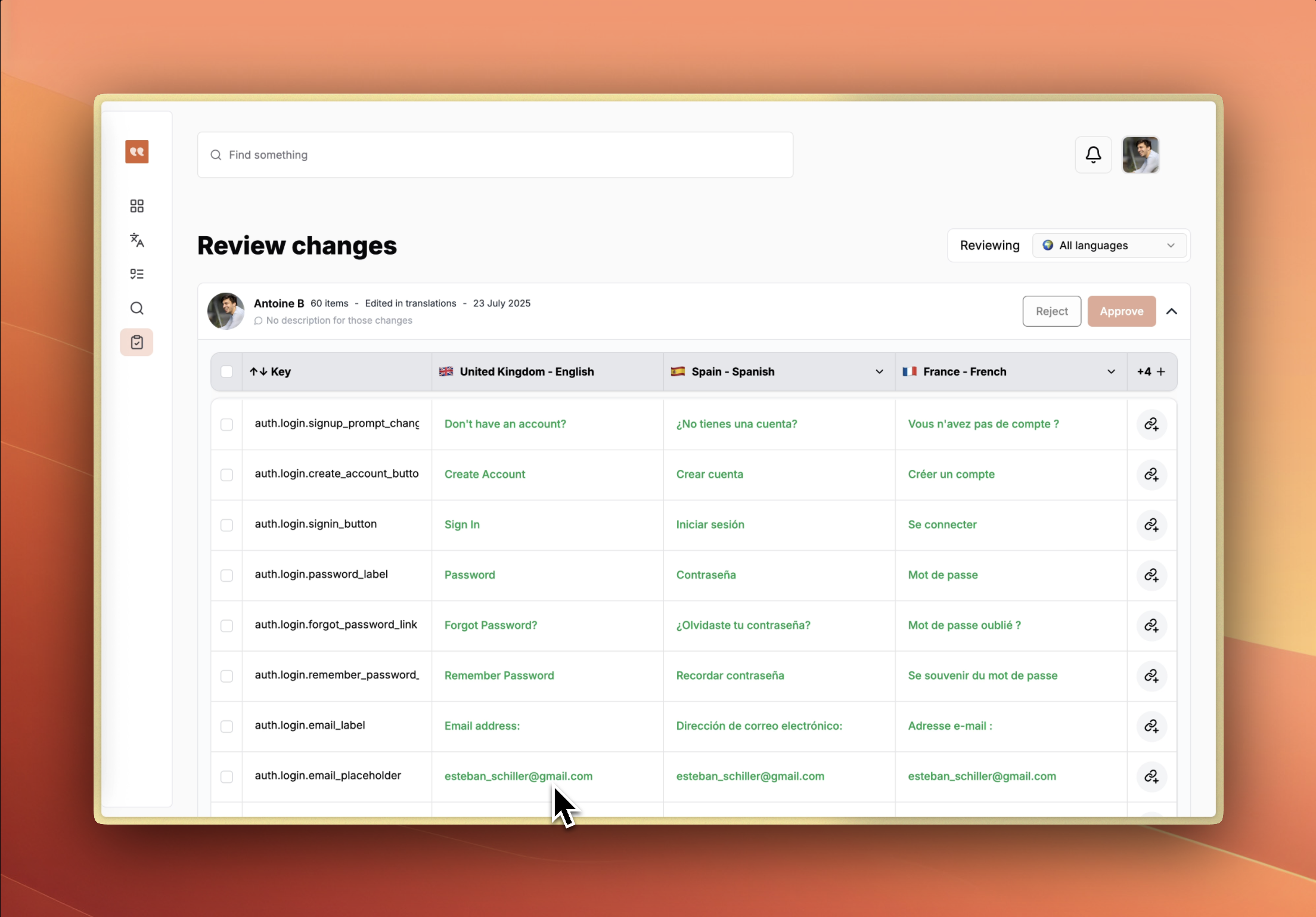
Changes are grouped into **changesets** - collections of related translation modifications created when translators edit content. Each changeset includes:
* Creator information with avatar and name
* Number of modified translations
* Creation timestamp
* Optional description/comment explaining the changes
## Core Review Workflows
### 1. Reviewing a Set of Translations
This is the primary workflow for approving or rejecting translation changes.
**Step-by-step:**
1. **View pending changesets** - The review page displays all changesets awaiting review as collapsible cards
2. **Expand a changeset** - Click on any changeset card to expand it and see the full translation table
3. **Review the changes** - The table shows:
* Side-by-side diff view (draft vs. published versions)
* All translations are automatically selected for review by default
* Highlighted differences between old and new text
4. **Make a decision:**
* Click **Approve** to publish the selected translations immediately
* Click **Reject** to send translations back to draft status
* The button shows the number of items being approved/rejected (e.g., "Approve 12")
### 2. Filtering by Specific Language
When you need to focus on reviewing one language at a time (for example, you're in charge of Mexico Spanish)
**Step-by-step:**
1. **Select a language** - In the top-right corner, click the language dropdown (default: "All languages")
2. **Choose your target language** - Select from available languages (e.g., French, German, Spanish)
3. **Review filtered translations** - The interface now shows only translations for the selected language
4. **Approve/reject by language** - Actions only affect the selected language, allowing granular control
**Use cases:**
* Language-specific reviewers checking only their expertise area
* Reviewing machine-translated content language by language
* Prioritizing critical languages first
### 3. Previewing Figma Context of Translations
View translations in the context of your actual designs while reviewing.
**Step-by-step:**
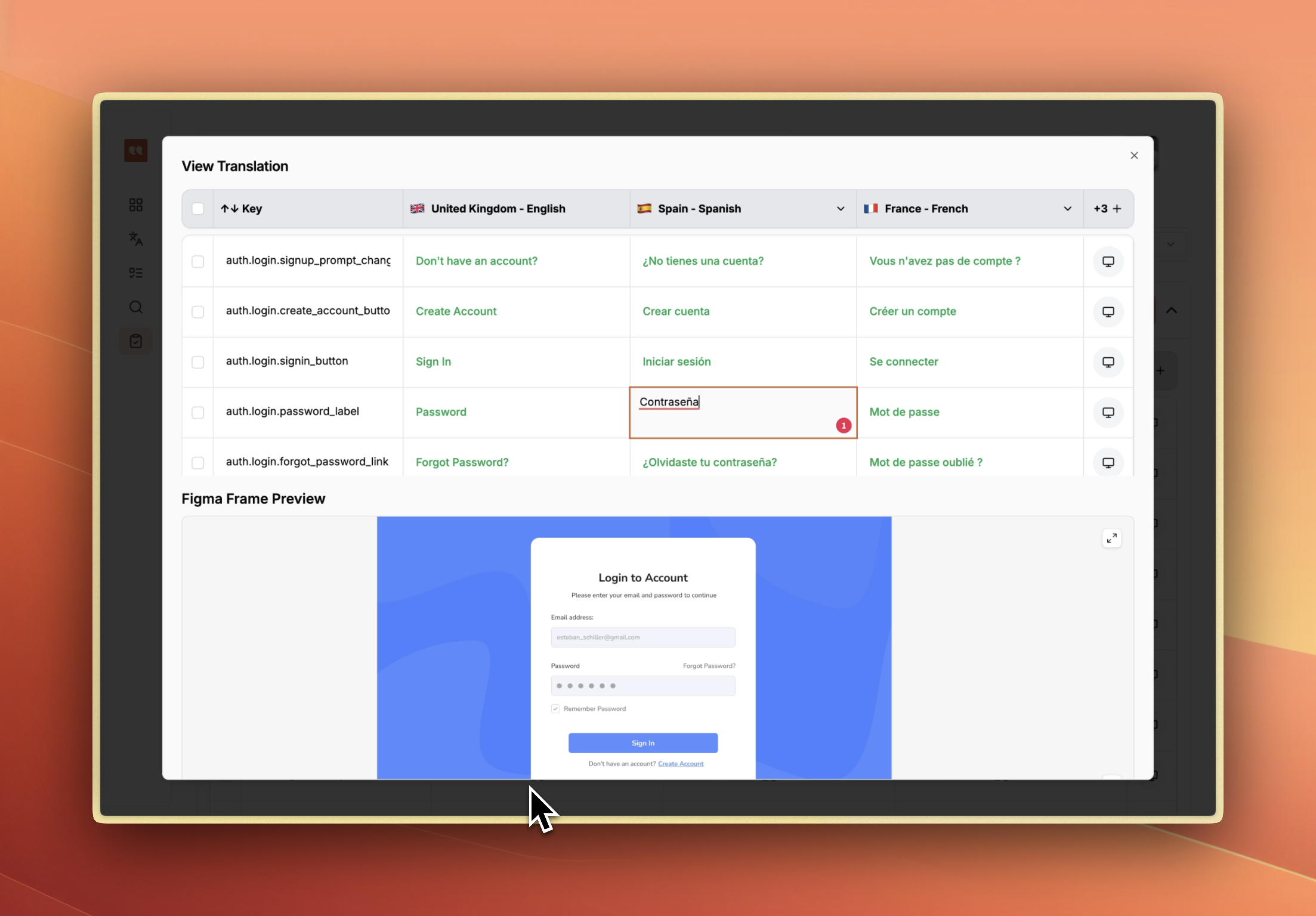
1. **Open Figma preview** - Click the Figma icon next to any translation in the table
2. **View design context** - A modal opens showing:
* **Top section:** Translation table with all related strings
* **Bottom section:** Embedded Figma frame showing the design
3. **Navigate between elements** - Click the Figma icon on different translations to jump to their design location
4. **Edit while previewing** - You can edit translations directly in the preview modal
5. **Review with context** - Compare translations against the visual design to ensure proper fit and context
**Adding Figma URLs:**
* If a translation doesn't have a Figma URL, click "Add Figma URL"
* Paste the Figma link to connect the translation to its design element
* The URL is saved automatically for future reference
## Understanding Changesets
Changes are grouped into **changesets** - collections of related translation modifications created when translators edit content. Each changeset includes:
* Creator information with avatar and name
* Number of modified translations
* Creation timestamp
* Optional description/comment explaining the changes
## Core Review Workflows
### 1. Reviewing a Set of Translations
This is the primary workflow for approving or rejecting translation changes.
**Step-by-step:**
1. **View pending changesets** - The review page displays all changesets awaiting review as collapsible cards
2. **Expand a changeset** - Click on any changeset card to expand it and see the full translation table
3. **Review the changes** - The table shows:
* Side-by-side diff view (draft vs. published versions)
* All translations are automatically selected for review by default
* Highlighted differences between old and new text
4. **Make a decision:**
* Click **Approve** to publish the selected translations immediately
* Click **Reject** to send translations back to draft status
* The button shows the number of items being approved/rejected (e.g., "Approve 12")
### 2. Filtering by Specific Language
When you need to focus on reviewing one language at a time (for example, you're in charge of Mexico Spanish)
**Step-by-step:**
1. **Select a language** - In the top-right corner, click the language dropdown (default: "All languages")
2. **Choose your target language** - Select from available languages (e.g., French, German, Spanish)
3. **Review filtered translations** - The interface now shows only translations for the selected language
4. **Approve/reject by language** - Actions only affect the selected language, allowing granular control
**Use cases:**
* Language-specific reviewers checking only their expertise area
* Reviewing machine-translated content language by language
* Prioritizing critical languages first
### 3. Previewing Figma Context of Translations
View translations in the context of your actual designs while reviewing.
**Step-by-step:**
1. **Open Figma preview** - Click the Figma icon next to any translation in the table
2. **View design context** - A modal opens showing:
* **Top section:** Translation table with all related strings
* **Bottom section:** Embedded Figma frame showing the design
3. **Navigate between elements** - Click the Figma icon on different translations to jump to their design location
4. **Edit while previewing** - You can edit translations directly in the preview modal
5. **Review with context** - Compare translations against the visual design to ensure proper fit and context
**Adding Figma URLs:**
* If a translation doesn't have a Figma URL, click "Add Figma URL"
* Paste the Figma link to connect the translation to its design element
* The URL is saved automatically for future reference
 ### 4. Partial Approval (Selective Review)
Review and approve only specific translations within a changeset.
**Step-by-step:**
1. **Expand the changeset** - Click to open the translation table
2. **Deselect translations** - By default all items are selected. Uncheck the boxes next to translations you don't want to approve
3. **Review your selection** - The Approve/Reject buttons update to show the count of selected items
4. **Approve selected items** - Click Approve to publish only the checked translations
5. **Remaining items** - Unselected translations remain in draft status for future review
**Use cases:**
* Some translations need revision but others are ready
* Reviewing in multiple passes
* Different approval authority for different content types
### 5. Editing Translations During Review
Make quick corrections without rejecting the entire changeset.
**Step-by-step:**
1. **Identify issues** - While reviewing, spot a translation that needs minor adjustment
2. **Click to edit** - Click directly on any translation text in the table
3. **Make changes** - Edit the text inline
4. **Auto-save** - Changes save automatically (watch for the save indicator in the top-right)
5. **Continue reviewing** - No need to reject and wait for resubmission
6. **Approve when ready** - Approve the changeset with your edits included
**Note:** A save status indicator shows when changes are being saved or have been saved successfully.
## Review Interface Reference
### Changeset Card (Collapsed)
* **Creator avatar and name** - Who made these changes
* **Item count** - Number of translations modified
* **Source indicator** - Where changes were made (e.g., "Edited in translations")
* **Timestamp** - When the changeset was created
* **Comment/description** - Optional explanation of changes
* **Expand/collapse icon** - Click anywhere on the card to toggle
### Changeset Card (Expanded)
* **Save indicator** - Shows auto-save status
* **Reject button** - Returns selected translations to draft
* **Approve button** - Publishes selected translations immediately
* **Translation table** - Shows all translations with:
* Checkboxes for selection
* Translation keys
* Diff view (old → new text)
* All target languages as columns
* Figma preview icons
* Inline editing capability
### Language Filter (Header)
* Located in top-right corner
* Shows current selection (e.g., "🌍 All languages" or "🇫🇷 France - French")
* Filters all visible changesets when changed
* Affects approve/reject actions
## Tips and Best Practices
**Efficient reviewing:**
* Use language filtering for focused review sessions
* Keep Figma preview open to verify visual context
* Expand one changeset at a time to avoid overwhelming the interface
**Quality assurance:**
* Always check Figma context for UI strings sizes
* Review all languages in a changeset together when possible
* Look for consistency across similar translations
* Verify that translations fit within design constraints
### 4. Partial Approval (Selective Review)
Review and approve only specific translations within a changeset.
**Step-by-step:**
1. **Expand the changeset** - Click to open the translation table
2. **Deselect translations** - By default all items are selected. Uncheck the boxes next to translations you don't want to approve
3. **Review your selection** - The Approve/Reject buttons update to show the count of selected items
4. **Approve selected items** - Click Approve to publish only the checked translations
5. **Remaining items** - Unselected translations remain in draft status for future review
**Use cases:**
* Some translations need revision but others are ready
* Reviewing in multiple passes
* Different approval authority for different content types
### 5. Editing Translations During Review
Make quick corrections without rejecting the entire changeset.
**Step-by-step:**
1. **Identify issues** - While reviewing, spot a translation that needs minor adjustment
2. **Click to edit** - Click directly on any translation text in the table
3. **Make changes** - Edit the text inline
4. **Auto-save** - Changes save automatically (watch for the save indicator in the top-right)
5. **Continue reviewing** - No need to reject and wait for resubmission
6. **Approve when ready** - Approve the changeset with your edits included
**Note:** A save status indicator shows when changes are being saved or have been saved successfully.
## Review Interface Reference
### Changeset Card (Collapsed)
* **Creator avatar and name** - Who made these changes
* **Item count** - Number of translations modified
* **Source indicator** - Where changes were made (e.g., "Edited in translations")
* **Timestamp** - When the changeset was created
* **Comment/description** - Optional explanation of changes
* **Expand/collapse icon** - Click anywhere on the card to toggle
### Changeset Card (Expanded)
* **Save indicator** - Shows auto-save status
* **Reject button** - Returns selected translations to draft
* **Approve button** - Publishes selected translations immediately
* **Translation table** - Shows all translations with:
* Checkboxes for selection
* Translation keys
* Diff view (old → new text)
* All target languages as columns
* Figma preview icons
* Inline editing capability
### Language Filter (Header)
* Located in top-right corner
* Shows current selection (e.g., "🌍 All languages" or "🇫🇷 France - French")
* Filters all visible changesets when changed
* Affects approve/reject actions
## Tips and Best Practices
**Efficient reviewing:**
* Use language filtering for focused review sessions
* Keep Figma preview open to verify visual context
* Expand one changeset at a time to avoid overwhelming the interface
**Quality assurance:**
* Always check Figma context for UI strings sizes
* Review all languages in a changeset together when possible
* Look for consistency across similar translations
* Verify that translations fit within design constraints