> ## Documentation Index
> Fetch the complete documentation index at: https://docs.gleef.eu/llms.txt
> Use this file to discover all available pages before exploring further.
# Managing Translations
> Edit and organize translations in the Studio interface
# Managing Translations
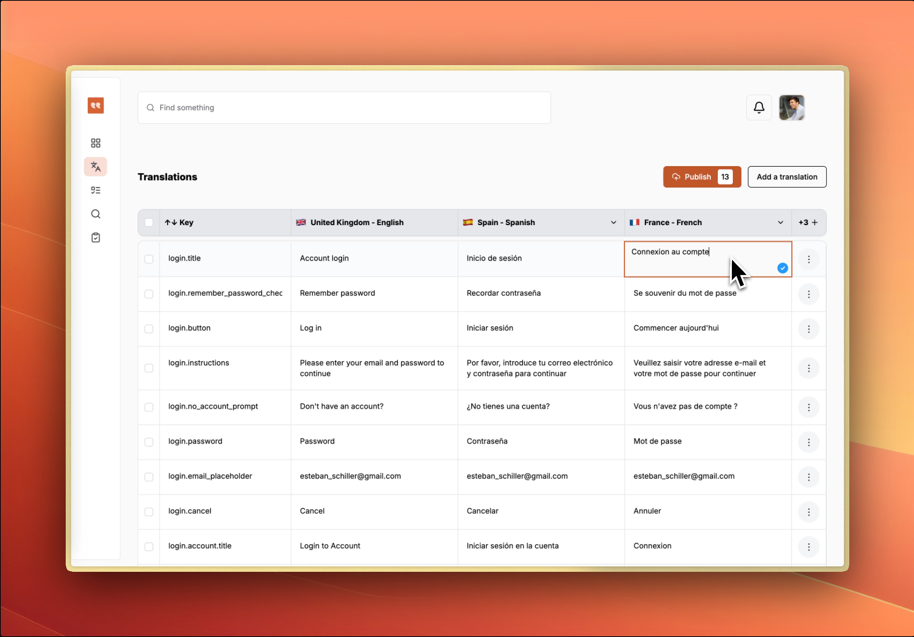
The translations interface provides a table view for editing content across multiple languages with real-time collaboration and auto-save.
 ## Translation Table
### Basic Operations
* **Click any cell** to start editing
* **Use Tab/Enter** to navigate between cells
* **Changes save automatically** with visual indicators
* **Edit multiple languages** side by side
* **Add languages** with the "+" button in the header
* **Hide/show columns** by right-clicking language headers
### Translations from the Gleef CLI and Figma plugin
* When you create translations using the CLI or Figma plugin, they will appear as drafts in the Studio
* To publish these drafts or request a review, simply click the button in the top-right corner of the Studio interface.
## Working with Translation Keys
Translation keys serve as unique identifiers:
* **Create new keys** directly in the table
* **Edit key names** by clicking the key column
* **Search by key patterns** to find related translations
## Publishing Changes
## Translation Table
### Basic Operations
* **Click any cell** to start editing
* **Use Tab/Enter** to navigate between cells
* **Changes save automatically** with visual indicators
* **Edit multiple languages** side by side
* **Add languages** with the "+" button in the header
* **Hide/show columns** by right-clicking language headers
### Translations from the Gleef CLI and Figma plugin
* When you create translations using the CLI or Figma plugin, they will appear as drafts in the Studio
* To publish these drafts or request a review, simply click the button in the top-right corner of the Studio interface.
## Working with Translation Keys
Translation keys serve as unique identifiers:
* **Create new keys** directly in the table
* **Edit key names** by clicking the key column
* **Search by key patterns** to find related translations
## Publishing Changes
 ### Asking for review
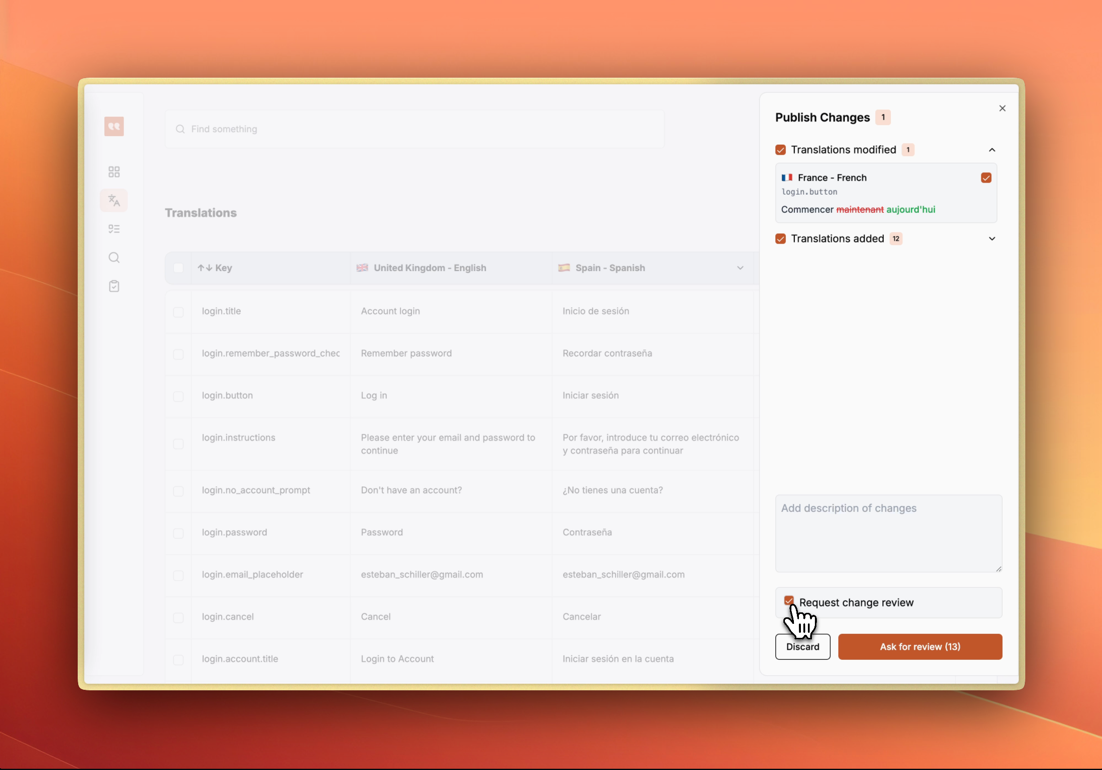
When you're ready to publish:
1. **Select translations** you want to publish
2. **Click "Publish" or "Request Review"** in the header
3. **Changes are grouped** into changesets for review
4. **Published translations** appear in your live applications
## Collaboration Features
### Real-Time Editing
* **Saving indicators** show sync status
* **Change tracking** highlights modifications available to be published
* **Version history** preserves previous values
### Figma Preview
* **Link translations to designs** using Figma URLs or by publishing from the Figma Plugin
* **Preview visual context** to translate in context
* **Figma icons** indicate design-connected content
* **Maintain design consistency** during translation
## Search and Filtering
* **Real-time search** filters table content instantly
* **Search across keys and translations** in all languages
### Asking for review
When you're ready to publish:
1. **Select translations** you want to publish
2. **Click "Publish" or "Request Review"** in the header
3. **Changes are grouped** into changesets for review
4. **Published translations** appear in your live applications
## Collaboration Features
### Real-Time Editing
* **Saving indicators** show sync status
* **Change tracking** highlights modifications available to be published
* **Version history** preserves previous values
### Figma Preview
* **Link translations to designs** using Figma URLs or by publishing from the Figma Plugin
* **Preview visual context** to translate in context
* **Figma icons** indicate design-connected content
* **Maintain design consistency** during translation
## Search and Filtering
* **Real-time search** filters table content instantly
* **Search across keys and translations** in all languages